Windows 11 Pro – Operating System – Microsoft is designed to elevate your computing experience with its innovative features and sleek interface. As the latest offering from Microsoft, it brings significant upgrades over its predecessors, providing users with enhanced productivity, security, and gaming capabilities. Whether you’re a professional seeking streamlined workflows or a gamer looking for cutting-edge performance, Windows 11 Pro is tailored to meet your needs.
The operating system introduces a visually appealing user interface, revamped taskbar, and improved start menu functionalities that set it apart from previous versions. With specific system requirements, it’s crucial for users to understand what’s needed to fully leverage the power of Windows 11 Pro.
Overview of Windows 11 Pro
Windows 11 Pro is the latest operating system from Microsoft, designed to enhance productivity and provide a more streamlined user experience. This version is tailored for professional users who require advanced features to handle demanding workloads. With a fresh design and robust functionalities, Windows 11 Pro stands out in the evolving landscape of operating systems.
The key features of Windows 11 Pro include enhanced virtual desktops, integrated Microsoft Teams, and advanced security protocols. Unlike its predecessor, Windows 10, Windows 11 Pro offers a more intuitive interface that prioritizes ease of access and performance. The system requirements for installing Windows 11 Pro are relatively stringent, ensuring that users have the necessary hardware to fully utilize its capabilities.
Key Features of Windows 11 Pro
Windows 11 Pro introduces several notable features:
- Snap Layouts for improved multitasking.
- Microsoft Teams integration for seamless communication.
- Enhanced gaming features including DirectStorage and Auto HDR.
- Advanced security features such as BitLocker and Windows Hello.
- Support for virtual desktops for optimized workspace management.
Differences from Other Versions of Windows
Windows 11 Pro differs from Windows Home and other editions primarily in its security and management capabilities. Pro users benefit from features such as Group Policy Management, which allows for better control over system settings and configurations.
System Requirements for Installing Windows 11 Pro
The system requirements for Windows 11 Pro include:
- Processor: 1 GHz or faster with at least 2 cores on a compatible 64-bit processor.
- RAM: 4 GB or more.
- Storage: 64 GB or larger storage device.
- System firmware: UEFI, Secure Boot capable.
- TPM: Trusted Platform Module version 2.0.
- Graphics card: DirectX 12 compatible graphics / WDDM 2.x.
- Display: >9” with HD Resolution (720p).
User Interface and Experience
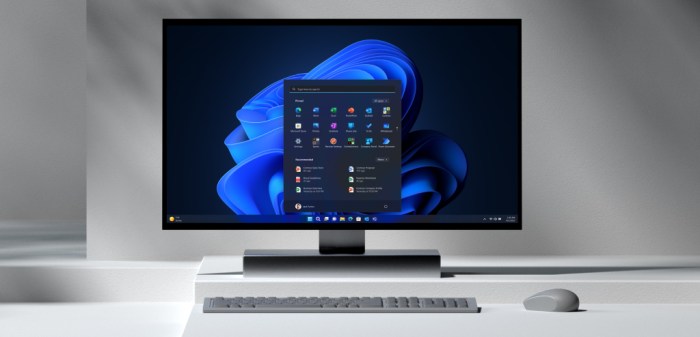
The user interface of Windows 11 Pro has undergone a significant redesign, featuring a centered taskbar and rounded corners for windows, creating a more modern aesthetic. The new interface promotes user engagement by simplifying navigation and improving accessibility to tools and applications.
Design Elements of the Windows 11 Pro Interface, Windows 11 Pro – Operating System – Microsoft
The design elements focus on clarity and ease of use, with:
- Softened edges around windows for a more modern look.
- New icons that are visually appealing and easier to recognize.
- Improved touch controls for tablets and touchscreen devices.
New Taskbar and Start Menu Functionalities
The taskbar and Start menu have been revamped to enhance user experience. Key functionalities include:
- A simplified Start menu that focuses on pinned apps and recommended files.
- Redesigned taskbar that provides quick access to essential tools and apps.
- Enhanced notification center for better management of alerts and reminders.
Comparison of User Experience Between Windows 10 and Windows 11 Pro
The user experience in Windows 11 Pro is distinctly different from Windows 10. With improved responsiveness and a more cohesive design, users can expect:
- Faster access to applications and settings.
- More customizable desktop options.
- A more immersive gaming experience with better support for high-performance graphics.
Security Features
Windows 11 Pro places a strong emphasis on security, integrating advanced measures to protect user data and enhance system integrity. This focus on security is crucial in today’s digital landscape.
Security Enhancements in Windows 11 Pro
Windows 11 Pro includes several security enhancements:
- Hardware-based isolation to protect sensitive information.
- Improved ransomware protection through advanced tools.
- Regular updates for the latest security patches and vulnerabilities.
Built-in Tools for Protecting User Data
The operating system comes with built-in tools designed to safeguard users’ data:
- Windows Defender Antivirus for real-time protection against threats.
- BitLocker to encrypt drives and protect against unauthorized access.
- Windows Hello for secure login using biometric recognition.
Importance of Hardware Requirements for Security Features
The requirements such as TPM 2.0 are crucial for enabling advanced security features. These hardware specifications ensure that the operating system can effectively protect sensitive data from evolving threats.
Productivity Tools: Windows 11 Pro – Operating System – Microsoft
Windows 11 Pro is equipped with numerous productivity tools that help users maximize efficiency and manage their workflows effectively.
Integrated Productivity Tools in Windows 11 Pro
The operating system includes a variety of integrated tools that enhance productivity:
- Microsoft Teams for easy collaboration and communication.
- Virtual desktops for organizing tasks and projects.
- Task View for quickly switching between open applications.
Applications that Enhance Productivity on Windows 11 Pro
Several applications that come pre-installed or can be easily downloaded include:
- Microsoft Office Suite for document creation and collaboration.
- OneNote for taking notes and organizing information.
- Windows Calendar for managing schedules and meetings.
How Virtual Desktops Can Improve Workflow
Virtual desktops allow users to create multiple desktop environments, which enhances productivity by:
- Separating workspaces for different projects.
- Reducing clutter on the main desktop.
- Facilitating easy switching between tasks without losing focus.
Gaming Capabilities
Windows 11 Pro introduces advanced gaming features that cater to both casual and hardcore gamers, enhancing the overall gaming experience.
Gaming Features Specific to Windows 11 Pro
Key gaming features include:
- DirectStorage technology for faster load times in games.
- Auto HDR for improved graphics and visual fidelity.
- Integration with Xbox Game Pass for access to a vast library of games.
Integration of DirectStorage and Auto HDR Technologies
These technologies significantly boost gaming performance:
- DirectStorage allows games to load faster by utilizing the speed of SSDs.
- Auto HDR enhances visual quality in compatible games, providing a richer gaming experience.
Comparison of Gaming Performance Between Windows 10 and Windows 11 Pro
Users can expect improved gaming performance with Windows 11 Pro due to:
- Reduced latency and better frame rates.
- Enhanced compatibility with the latest gaming hardware.
- More efficient resource management for a smoother gaming experience.
Customization Options
Windows 11 Pro offers extensive customization options that allow users to tailor their desktop environment according to personal preferences.
Methods for Customizing the Windows 11 Pro Desktop
Users can customize their desktop using various methods:
- Change the background wallpaper to reflect personal style.
- Utilize widgets to keep important information at a glance.
- Arrange taskbar icons for quick access to frequently used applications.
Managing System Settings for a Personalized User Experience
The Settings app in Windows 11 Pro provides a straightforward way to manage and personalize various aspects of the system, including:
- Adjusting display settings for optimal screen usage.
- Configuring privacy settings to control data sharing.
- Setting up notifications according to personal preferences.
Step-by-Step Guide for Using Themes and Wallpapers in Windows 11 Pro
To personalize your desktop, follow these steps:
- Right-click on the desktop and select ‘Personalize.’
- Choose ‘Background’ to change the wallpaper.
- Navigate to ‘Themes’ to select or download new themes.
- Apply changes and enjoy your customized desktop experience.
Upgrading to Windows 11 Pro
Upgrading to Windows 11 Pro can unlock additional features and capabilities that enhance user experience and productivity.
Guide on How to Upgrade from Previous Windows Versions
Upgrading is a straightforward process:
- Check compatibility with the system requirements.
- Back up important files and data.
- Access Windows Update settings and select ‘Upgrade to Windows 11.’
- Follow the on-screen instructions to complete the installation.
Potential Challenges Users May Face During the Upgrade Process
Users may encounter challenges such as:
- Incompatibility with older hardware or software.
- Data loss if backups are not performed prior to upgrading.
- Learning curve due to changes in the user interface.
Benefits of Transitioning to Windows 11 Pro
Transitioning to Windows 11 Pro offers several advantages:
- Access to enhanced security features for better data protection.
- Improved productivity tools that streamline workflows.
- Better gaming performance and integration with modern gaming technologies.
Support and Resources
For Windows 11 Pro users, a wealth of support and resources is available to ensure smooth operation and troubleshooting.
Resources Available for Technical Support
Users can access support through:
- The Microsoft Support website for troubleshooting guides and FAQs.
- Community forums where users share solutions and experiences.
- Contacting Microsoft support for personalized assistance.
Importance of Updates and How to Manage Them Effectively
Regular updates are critical for system security and performance. Users should:
- Enable automatic updates to ensure the latest features and patches are installed.
- Check for updates periodically to stay informed about system upgrades.
- Review the update history to understand changes made to the system.
Online Communities and Forums for Windows 11 Pro Assistance
Joining online communities can provide additional support:
- Reddit communities focused on Windows issues.
- Microsoft Tech Community for direct interaction with other Windows users.
- Specialized forums for discussions on Windows 11 Pro features and troubleshooting.